Calling · Android field app

Call logging you can review. Optional Android help when you choose it.

Call from a lead, then record the outcome and next step. Manual logging works without call-history access. On supported corporate Android builds, optional call-log help can suggest a matching call's duration for you to review before saving.

  • Lead-aware outcome choices
  • Manual logging · optional Android call-log help
  • Logs queue offline
  • Android field app
  • Recording requires workspace setup

Review what gets saved

1. Start with a known lead and place the call.

2. Review an optional Android duration suggestion, or enter the talk time yourself.

3. Choose the outcome and next follow-up before saving.

A phone suggestion is not a provider connection or a recording.

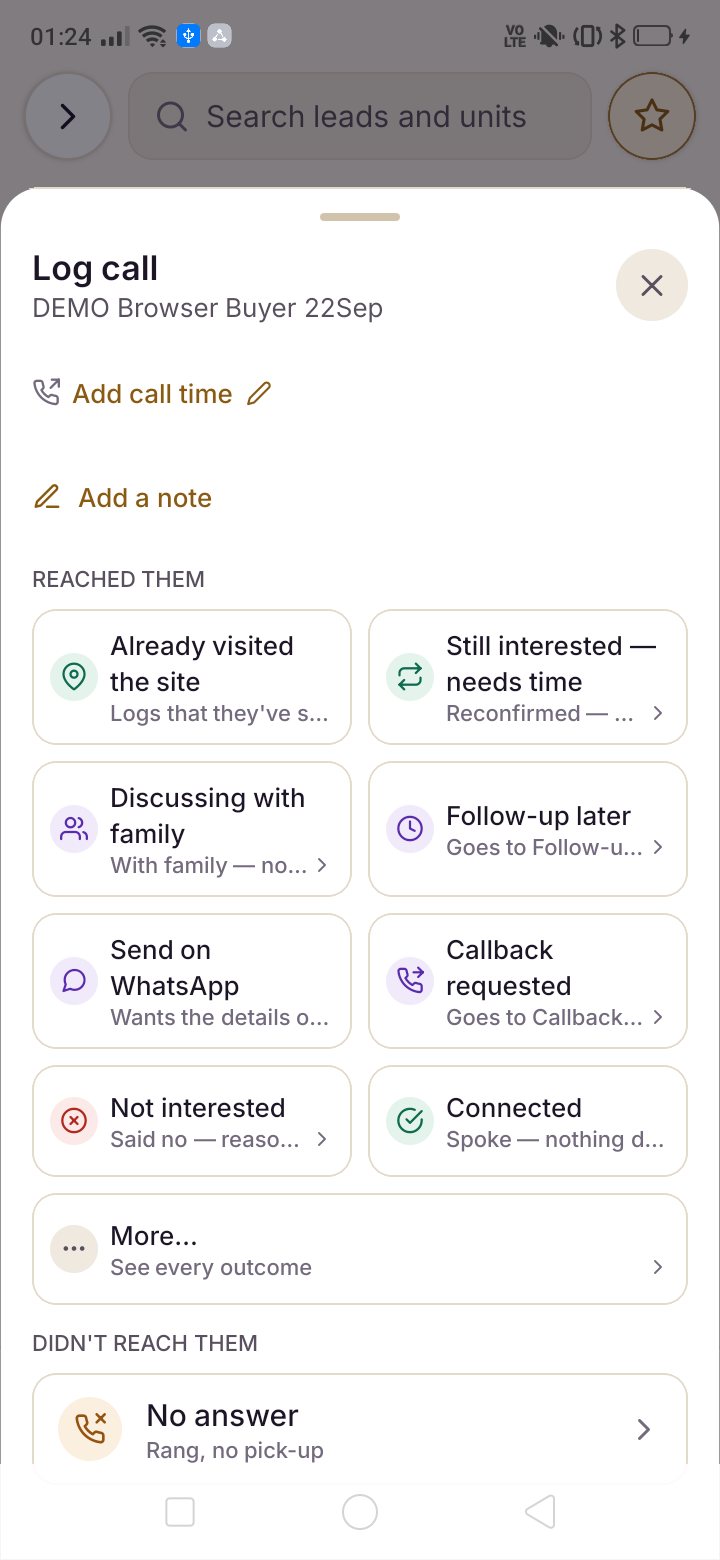
Manual call-log sheet for DEMO Browser Buyer 22Sep with reached-them options, More and No answer.
Review a call outcome. The manual log shows reached-them choices, More and No answer for a demo buyer. No outcome has been selected or saved.Current Android preview · demo dataThese screens show a private Android preview with demo data. The public download is build 30, so its screens may differ.Review the call workflow in a demo ↗

Screens from the Android app, running on sample data. They show the real product; they are not evidence of anyone’s results.

You choose the call-log helper.

Call-log help is off until you enable it and Android grants access. Android's permission covers call history; Saudaflow limits this helper to finding an outgoing call to a known lead that you started from the app, within a two-hour window. You review the suggestion before saving. If access is unavailable or the match is unclear, use manual logging.

Manual logging remains available

Call from a lead, then record the outcome and next step. Manual logging works without call-history access. On supported corporate Android builds, optional call-log help can suggest a matching call's duration for you to review before saving.

The helper needs current workspace access and Android permission. If either check fails, no suggestion is supplied.

Clear limits on phone access

This helper does not import incoming calls, calls started outside Saudaflow or your personal call history. It does not read your contacts, record call audio or identify an incoming caller. Calls to a configured company number are handled separately through the calling provider.

The matching identifier stays on the phone to avoid repeat suggestions. Only the duration you confirm is saved with your outcome.

So the app catches you on the way back

Keep the lead, outcome and next action together. The return-to-app prompt helps you review the call while the details are fresh.

  1. 01

    You tap Call

    Saudaflow retains the lead you selected and opens the phone’s dialler. Place the call through your carrier, then return to review the outcome.

  2. 02

    Your phone makes the call

    Your phone places the call through your carrier. Saudaflow retains the pending lead so you can review the outcome when you return. The optional helper may then offer a matching Android duration; it does not record audio.

  3. 03

    You come back, we ask

    The outcome sheet offers choices for the lead you are reviewing. Pick what happened, then complete any required details. Some choices ask for a reason, a follow-up time or a corrected number before saving.

≈40s away — and never “call duration”

Time away measures how long you were outside Saudaflow; it does not measure talk time. Keep it labelled as an estimate. Enter the talk time you can confirm, or review an available Android duration suggestion before saving. Neither an estimate nor a phone suggestion proves a provider connection.

Confirmed talk time and estimated time away remain distinct on the record. Review the source of a duration before using it in a report.

Basement, lift, stairwell

The outcome and the follow-up queue on the handset and send themselves when the bars come back. The app shows how many writes are still waiting, and what each one is, rather than pretending everything landed.

Nothing waiting to be logged? Open a lead and tap Log to record a call by hand. The choices shown depend on the lead; More reveals additional choices. A manual log records what the staff member enters, separate from device or provider evidence.

Clear outcomes, with their evidence visible

Review how each outcome records the staff member’s account of the call and the next action. Manual outcomes are separate from provider connection evidence.

Reached them — examples of conversation outcomes

  • ConnectedSpoke to them
  • InterestedWants to know more
  • Callback requestedThey asked us to call back
  • Follow-up laterCall again — pick a time
  • Send on WhatsAppWants the details on WhatsApp
  • Wants a site visitVisit intent; schedule the appointment separately
  • Already visited the siteRecords what the rep reports
  • Budget mismatchPrice is out of their reach
  • Not interestedReason required

Didn’t reach them — manual outcome choices

  • No answerRang, no pick-up
  • BusyEngaged or cut the call
  • Missed callThey rang, we missed it
  • Wrong numberNot this lead’s number

A rejection is still a connect: Not interested means somebody answered, and it refuses to save without a reason, because whoever opens the lead next needs to know why. Wrong number asks for the right one so the correction rides in the same record instead of being lost.

Why a connect is computed by subtraction

The outcome records what the rep reports happened. It keeps the selected reason and next action with the lead, so the team can follow up with context.

Manual outcomes are user-entered records, not proof of a connected conversation. Review them separately from available provider evidence, and open the records behind a report before drawing a conclusion.

It is a small design decision and we would not normally put it on a marketing page. We are putting it here because it is the difference between call analytics you can act on and call analytics that flatter whoever picked the label.

Before you dial, and after you hang up

The log is not the point. What happens because of the log is the point.

Consent is checked before the button works

A contact whose call consent is withheld gets a disabled Call button that says Call consent not given — the same for WhatsApp, with its own reason. A masked or incomplete number is never dialled quietly. The rep finds out before the call, not after.

A no-answer goes straight to the next step

Pick No answer, Busy or Missed call and the next screen is the follow-up time, not a dead end. Callback requested stores the time the buyer actually asked for. And Skip — just log it is there for the calls where there honestly is no next step.

Today knows what is due

The field app’s home screen raises a callback the moment its promised time passes, an overdue follow-up, a retry on a lead whose last attempt went unanswered, and a lead that connected and still has no next step at all. Each one names the rule and the time it is measured from.

The timeline is added to, never edited

Every outcome is an append-only activity carrying who, when, the selected outcome, the note, the callback time and whether the length is an estimate or confirmed. Nothing is rewritten later, so a call that went badly cannot quietly stop having happened.

Check what the rule actually does. Review the available actions and permissions for your workspace. A follow-up task, a WhatsApp hand-off or an approved template is not proof that the buyer received a message.

Recording is a separate company-call workflow.

Call-log help does not record audio. Company-call recording requires the workspace's provider setup, recording configuration and applicable notice and permission checks. The product shows the available state for that workspace. A configured account alone is not proof that a call was recorded.

Check the workspace before the call

  • Company account and number. Configure the provider for the right workspace, verify the number and review routing.
  • Notice and recording settings. Recording has its own checks. A phone call-log permission does not supply recording consent.
  • Actual provider evidence. An agent answering is distinct from a buyer connection. Old or missing live updates are shown as unknown.
  • Access and retention. Review the permitted recording access, required reason and applicable retention settings with your team.

Keep these limits in view.

  • This helper does not import incoming calls, calls started outside Saudaflow or your personal call history. It does not read your contacts, record call audio or identify an incoming caller. Calls to a configured company number are handled separately through the calling provider.
  • An iPhone release has not been verified. You can use the web app for its available workflows. That does not establish native iPhone features or offline parity.
  • Call-log help does not record audio. Company-call recording requires the workspace's provider setup, recording configuration and applicable notice and permission checks. The product shows the available state for that workspace. A configured account alone is not proof that a call was recorded.
  • Call-history permission is optional and restricted by Android. An installation may not be able to grant it; manual logging remains available.
  • Automatic import of all handset calls is not built. Confirmed CRM activities can use the normal pending-work queue.

Questions people actually ask

If yours is not here, ask it on the demo — the answer will be as blunt as these.

Does Saudaflow show me who is calling before I answer?

No. The current Android app does not identify incoming callers. Call-log help is off until you enable it and Android grants access. Android's permission covers call history; Saudaflow limits this helper to finding an outgoing call to a known lead that you started from the app, within a two-hour window. You review the suggestion before saving. If access is unavailable or the match is unclear, use manual logging. This helper does not import incoming calls, calls started outside Saudaflow or your personal call history. It does not read your contacts, record call audio or identify an incoming caller. Calls to a configured company number are handled separately through the calling provider.

Do I need a virtual number or a cloud telephony provider?

Ordinary handset calls use your phone's dialler and carrier plan. Company-number calling and recording need the relevant provider setup and may have provider charges.

Is call recording available today?

Call-log help does not record audio. Company-call recording requires the workspace's provider setup, recording configuration and applicable notice and permission checks. The product shows the available state for that workspace. A configured account alone is not proof that a call was recorded.

What is the “≈40s away” number — is that the call duration?

Time away measures how long you were outside Saudaflow; it does not measure talk time. Keep it labelled as an estimate. Enter the talk time you can confirm, or review an available Android duration suggestion before saving. Neither an estimate nor a phone suggestion proves a provider connection.

Does the field app work on iPhone?

An iPhone release has not been verified. You can use the web app for its available workflows. That does not establish native iPhone features or offline parity.

What about a call I made from my own phone book, not from Saudaflow?

Open the lead and use manual logging. Choose the outcome and enter the talk time you can confirm. The optional helper does not import calls started outside Saudaflow.

Does it work with no signal?

Supported manual call outcomes and follow-ups can wait in the visible queue while offline. Initial sign-in, duplicate checks and the call-log helper’s current-access check need a connection. Review pending work and conflicts when you reconnect.

Try the call workflow and review what gets saved.

Bring a sample lead and walk through the calling workflow. Choose an outcome, review the next step and inspect the record that was saved.

Check the workflows, permissions and setup your team needs before choosing a plan.